Quickstart
Create your first shortened link in under two minutes. This guide walks you through every step from sign-up to sharing.
No password needed
1. Explore the Landing Page
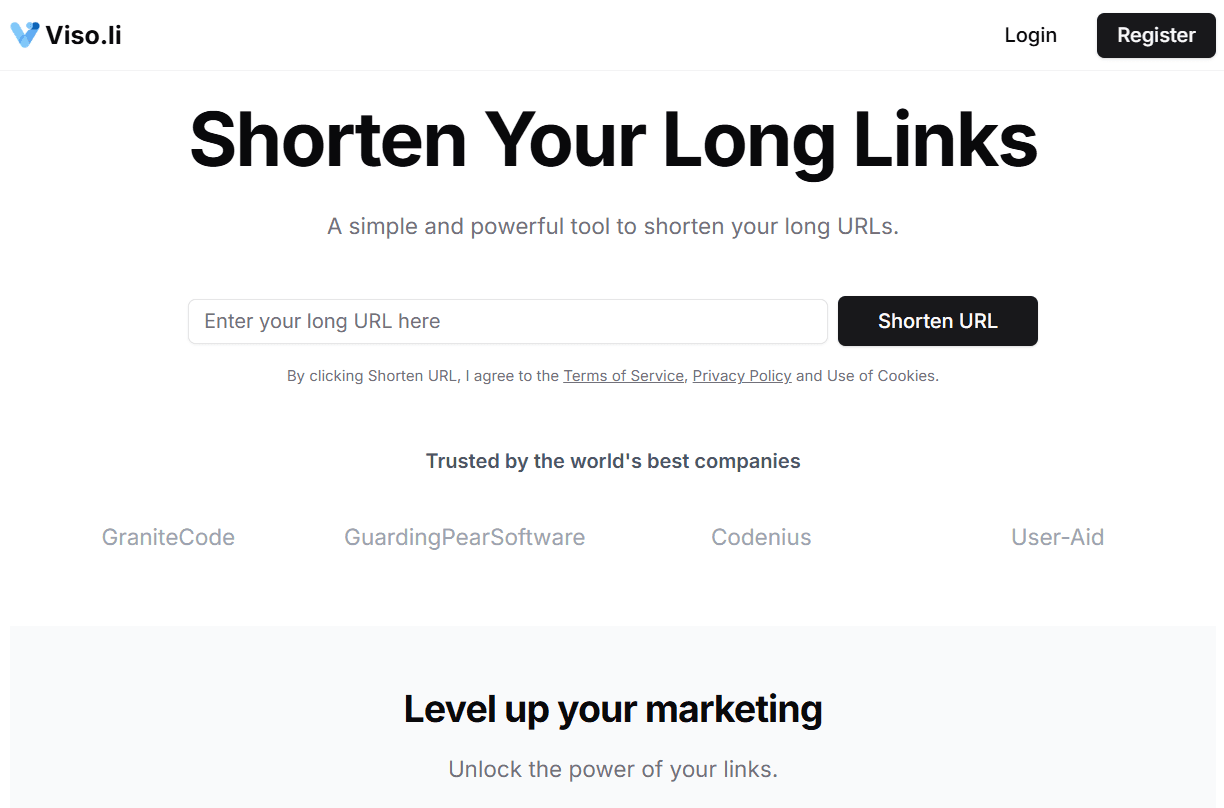
Visit viso.li to see what the platform offers. The landing page lets you shorten a link right away, or you can create a free account to unlock analytics, expiration dates, and link management.
Click Register in the top-right corner to get started.
2. Create Your Account
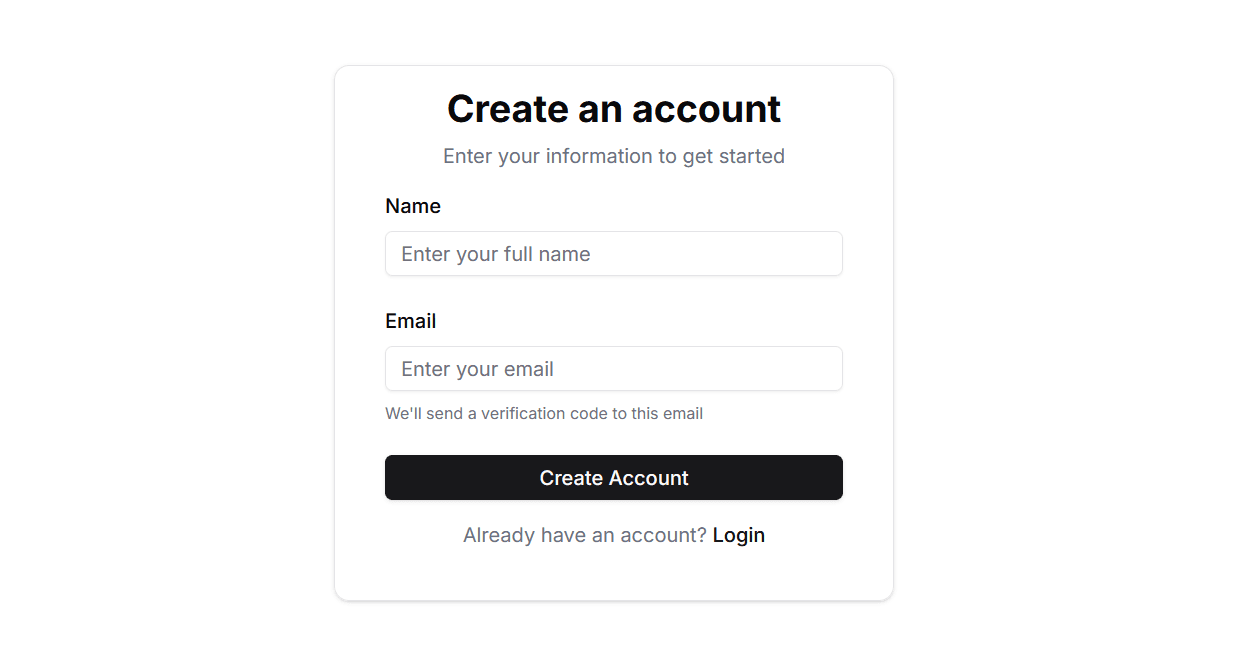
Enter your email address and click Continue with Email. That's all it takes; Viso.li will send a one-time verification code to your inbox so you can confirm your identity without ever setting a password.
3. Verify Your Email
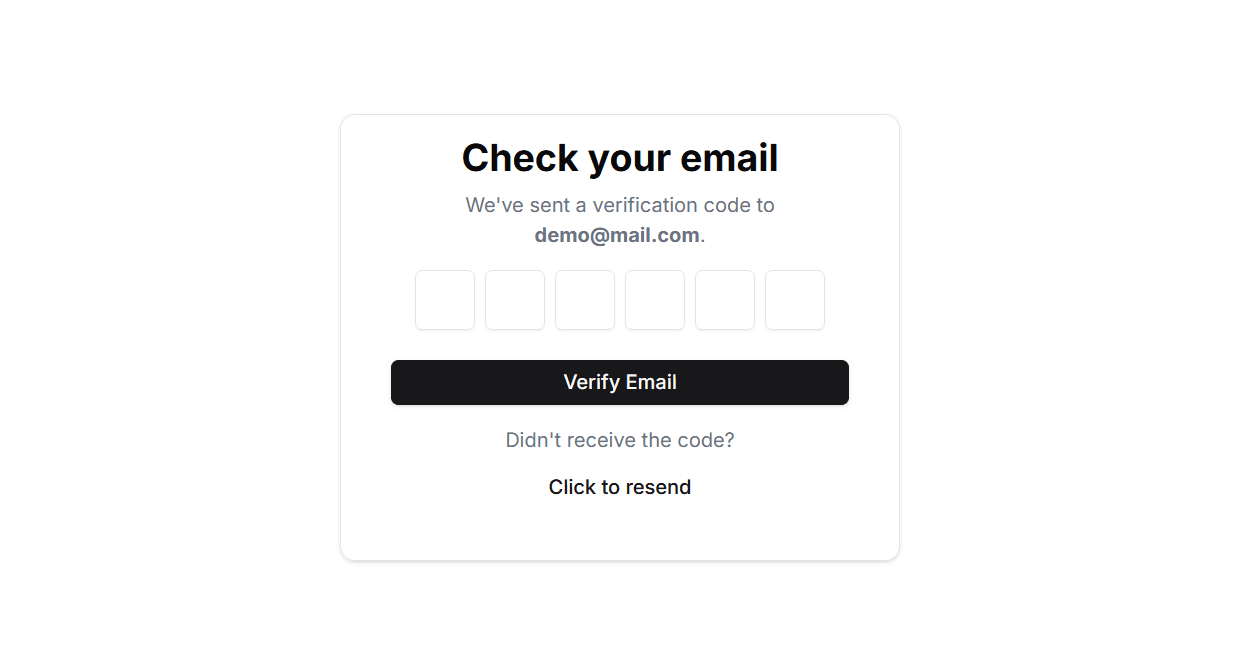
Check your inbox for a 6-digit verification code. Enter it on the verification screen and click Verify Email. Once confirmed you are automatically signed in and redirected to your dashboard.
Didn't receive the code?
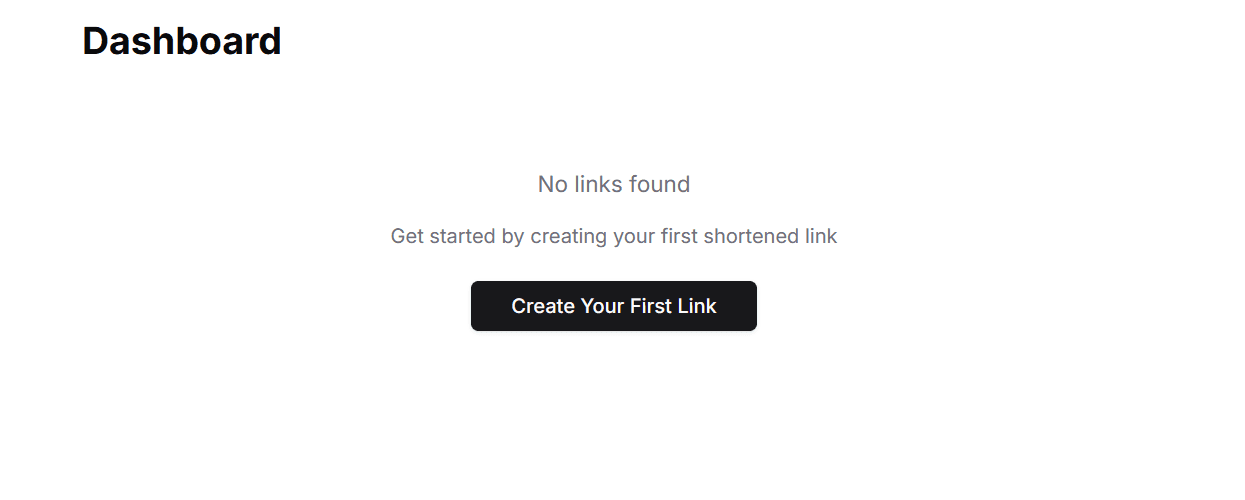
4. Your Dashboard
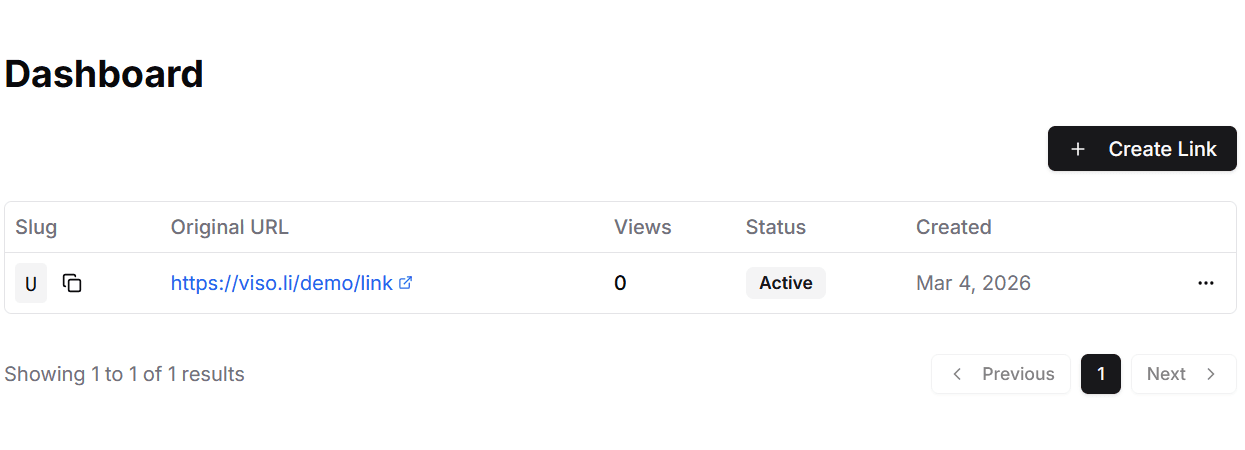
The dashboard is your home base. Here you can see every shortened link you've created, along with its slug, original URL, view count, current status, and creation date. Use the search and pagination controls to find links quickly as your list grows.
5. Create a Shortened Link
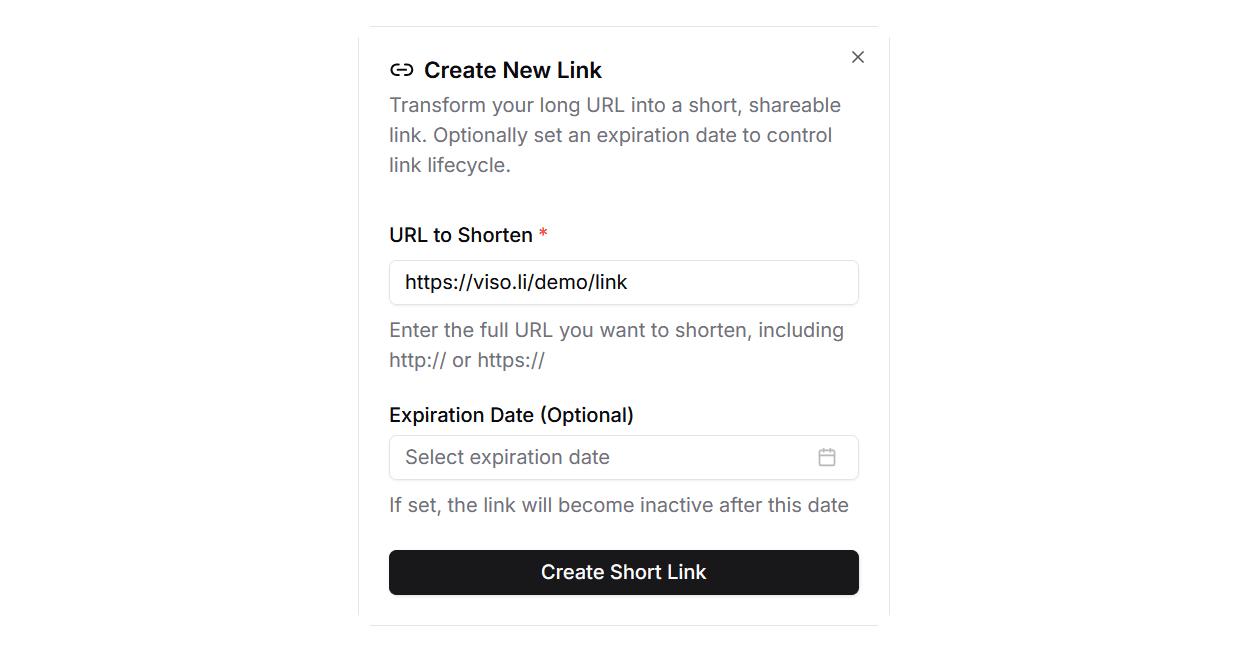
Click the + Create Link button above the table. A dialog appears with two fields:
- URL to Shorten: paste the full destination URL including
https://. - Expiration Date (optional): pick a date after which the link automatically becomes inactive. Leave this empty for a link that never expires.
Hit Create Short Link and your new link is ready to share.
6. Your Links at a Glance
Every link you create appears in the dashboard table. Each row shows:
- Slug: the unique short code for your link. Click the copy icon to grab the full short URL.
- Original URL: the destination your link points to.
- Views: how many times the link has been clicked. Track engagement at a glance without leaving the dashboard.
- Status: whether the link is Active or has expired.
- Created: the date the link was created.
Use the three-dot menu on each row to access additional options such as viewing detailed analytics or deleting the link.